page.getByRole()ARIA role + accessible name
<button>Save changes</button>
Understand Playwright's actionability and locators.
So far, you should have at least two test cases in your shop.spec.ts:
So far, we've only recorded tests without knowing how Playwright works under the hood. Let's look at how Playwright locators and interactions work!
Playwright interactions are based on locators.
import { test, expect } from "@playwright/test";test("has title", async ({ page }) => { await page.goto("https://playwright.dev/"); await page.getByRole("link").click();});But what are locators?
A locator is a "blueprint" of the elements you want to interact with.
The Playwright team strongly encourages using "user-first" locators that are as close to the end-user experience as possible. The recommended locators are:
page.getByRole()ARIA role + accessible name
page.getByText()visible text content
page.getByLabel()form field by its label
page.getByPlaceholder()input via its placeholder
page.getByAltText()image by its alt text
page.getByTitle()via its title attribute
page.getByTestId()developer-set data-testid attribute
page.locator()brittle CSS selectors that couple tests to markup
CSS selectors couple tests to internal markup. They break the moment a dev renames a class.
Try to test user-first as much as possible.
codegen tries to come up with user-first locators for you, but PWT can't
know your site's internals or which locator is best. You usually have to tweak
the locators it generates.
In a real-world codebase, you'll quickly discover that not all DOM elements can be selected user-first. In practice, it's often a mix of different locators. Check other locators in the docs.
When getByRole failsSelect this container via test id: getbyrole-fails
Run codegen against this lesson page (npx playwright codegen <url>) and
record a click on the button below. What locator does Playwright suggest,
and why isn't it getByRole('button')?
The element looks like a button but it's a <span> with an onClick
handler. There's no implicit role="button", no keyboard handling, and no
accessible name. getByRole('button', { name: 'Click me' }) finds
nothing. Codegen falls back to getByText('Click me').
User-first locators often reveal frontend problems. If a
"clickable" button can only be selected with getByText, it's probably not
a real <button>. If a form element can't be selected with getByLabel,
it's often inaccessible without proper labels.
The list goes on. If you struggle to find good locators, it's often time to improve the frontend.
Locators have three core characteristics you should know.
A locator throws an exception if it matches multiple DOM elements when used with an action or assertion.
await page.getByRole("link").click();
// Error:
// locator.click: Error: strict mode violation: getByRole('link') resolved to 31 elements:
// ...
If multiple elements match a locator, you need to be more specific or use helper functions such as first(), nth() or last().
await page.getByRole("link").first().click();
Every time a locator is used for an action, an up-to-date DOM element is located on the page.
// the `locator` is only evaluated when it's used
const locator = page.getByRole("button", { name: "Sign in" });

// evaluate DOM elements matching the locator
await locator.hover();
// evaluate DOM elements matching the locator
await locator.click();
Many people await locators. That's unnecessary because a locator only
holds a definition until it's used with an action or assertion.
// There's nothing to `await`, a locator is only a definition.
// So don't do this.
//                👇
const locator = await page.getByRole("button", { name: "Sign in" });
To narrow down your selection, you can always filter and chain locators.
// The `button` locator reuses the `product` locator
const product = page.getByRole("listitem").filter({ hasText: "Product 2" });
const button = product.getByRole("button", { name: "Add to cart" });

// Mix `getByTestId` with semantic locators for tighter scoping
const productGrid = page.getByTestId("hero-product-grid");
const productLink = productGrid.getByRole("link", {
  name: "The Collection Snowboard:",
});
This is very handy when a site includes some data-testid attributes. Chain locators to narrow things down to exactly the element you want.
Write a locator that targets Product 2's buttonSelect this container via test id: locator-chaining
The stage below has three product cards, each with an identical "Add to cart" button. Write a Playwright locator that resolves to exactly one element: Product 2's button.
Don't forget to check that the button changes to "Product added".
getByRole('button') matches all three buttons. Even
getByRole('button', { name: 'Add to cart' }) matches all three because the
accessible name is identical. You have to scope the chain by the one thing
that differs between cards: the heading text.
const container = page.getByTestId("locator-chaining");
const listContainer = container
  .getByRole("listitem")
  .filter({ hasText: "Product 2" });

await listContainer.getByRole("button", { name: "Add to cart" }).click();
filter({ hasText: 'Product 2' }) narrows the listitem locator to a single
card. The inner getByRole('button') then resolves to one element inside
that scope.
Playwright provides action methods for all common user interactions.
locator.fill()locator.check()locator.selectOption()locator.click()locator.dblclick()locator.hover()locator.type()locator.press()codegen is an invaluable tool!The most important concept when it comes to PWT is that actions auto-wait.
A click() call isn't only a click. Actions are asynchronous operations.
For example, await locator.click() waits until the element is actionable, which means that the matching element:
disabled attribute)// Concept 1:
// Click will wait for the element to be actionable
await page.getByText("Login").click();
// Concept 2:
// Fill will auto-wait for element to be actionable
await page.getByLabel("User Name").fill("John Doe");
You can follow all actionability checks in the "Actionability Log" included in the
debugger (npx playwright test --debug) or Playwright's UI mode (npx playwright test --ui).
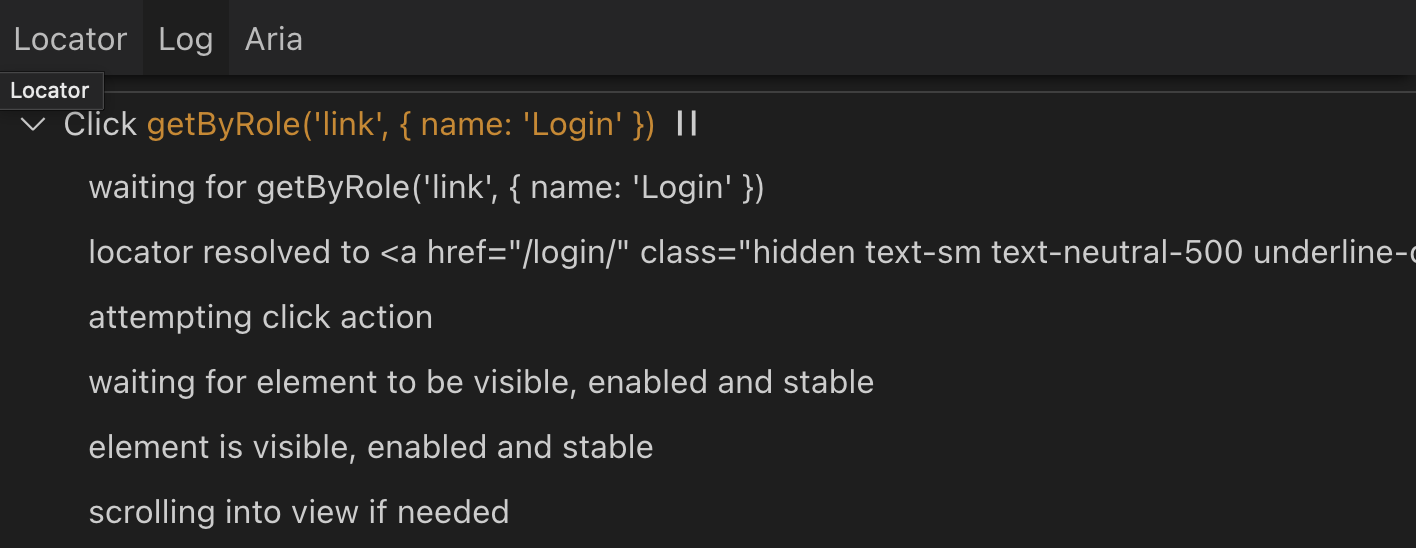
waitFor statementsAuto-waiting lets you drop many manual waitFor statements
because you don't have to check if an element exists or is visible. Playwright
will do that for you and wait / retry until an element is "ready for action" or
throw a timeout error in your test.
Click each button — they show up in different statesSelect this container via test id: actionability-chain
Click Step 1, then Step 2, then Step 3. Step 2 only attaches to the DOM after a delay; Step 3 fades in and wiggles for a couple of seconds before it settles. Will it just work?
Three sequential clicks are enough. Playwright's actionability checks cover the delayed render (Step 2) and the in-flight animation (Step 3) for free.
await page.getByRole("button", { name: "Step 1" }).click();
await page.getByRole("button", { name: "Step 2" }).click();
await page.getByRole("button", { name: "Step 3" }).click();
Without auto-wait, you'd need a waitFor or toBeVisible between every
click, and you'd still race the animation on Step 3.
It's best if you let Playwright do its job. 🫣
Checking if an element is visible before interacting with it.
await expect(page.getByText("Login")).toBeVisible();
await page.getByText("Login").click();Just interact with it and let Playwright figure out the rest.
await page.getByText("Login").click();Add the 2nd home product to the cart
Products can always change. Try to avoid relying on "magic strings".
Create another "add to cart from home" test, but this time click the second product instead of relying on a product name.
/.Hint: Use position-based helpers like nth(), first(), or last() on top of a semantic locator.
Log in, then log back out
Create a login test that actually logs the user in.
The login includes many delays, but thanks to auto-waiting actions, you can quickly write a test for it.
/.